Enhanced Privacy and Keep Connected Device Alive are paid only features.
Please verify that the core features of Screen Mirroring and iOS Device control are working for you before you purchase it. The core features are free for three days from download.
Please Exit and Relaunch the App when you purchase.
- Enhanced Privacy: The App requests MacOS to hide the Screen Mirror Window.
- Keep Connected Device Screen Awake: Keeps the iPhone or iPad from Locking the screen when it is plugged in over bluetooth (requires bluetooth keyboard enabled)
I developed Screen Mirror as a Privacy Focused application. I wrote it for myself, and it feels great knowing that there are others who like it.
Why I developed the Screen Mirror App?
Enhanced Privacy
Enhanced privacy mode means that the Screen Mirror window, is not “visible” to other apps on MacOS. You the user can see the screen on the Mac, but if you share the screen with apps like Teams, Google Meet and Zoom* the Screen Mirror application will not show, its pretty magical. Try it out…
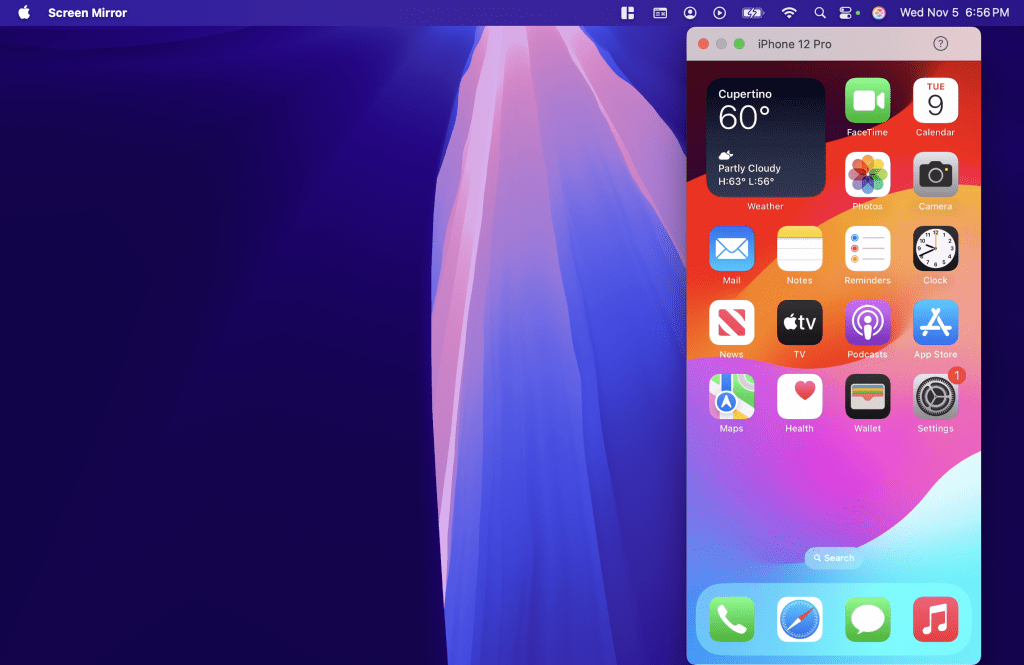
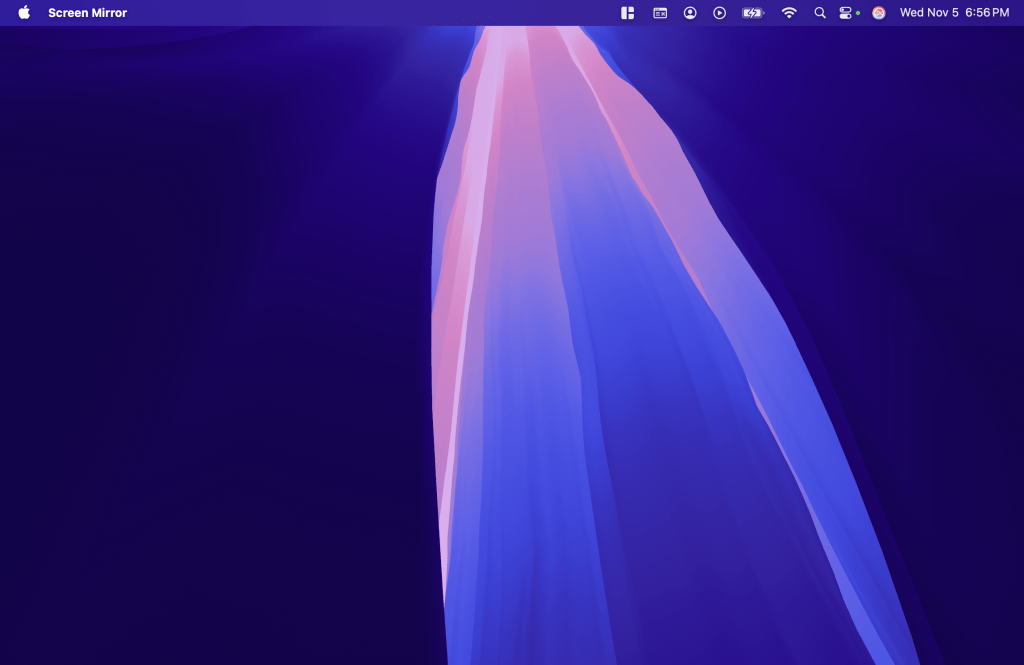
Why is this even relevant?
See my page on Why I developed the Screen Mirror App for why Screen mirror works the way it does.
I am a bit of a privacy fanatic. All my apps are privacy focused, this means that they do not have access to the internet at all. They cannot send me or anybody any data. For more details about my apps see my Privacy Policy.
Caveats
THIS IS NOT PERFECT.
The way this works is it requests any Screen Capture tools to ignore the application window. Most applications listen to this flag but there are some that don’t.
Teams and Google Meet are good citizens and will not capture these screens.
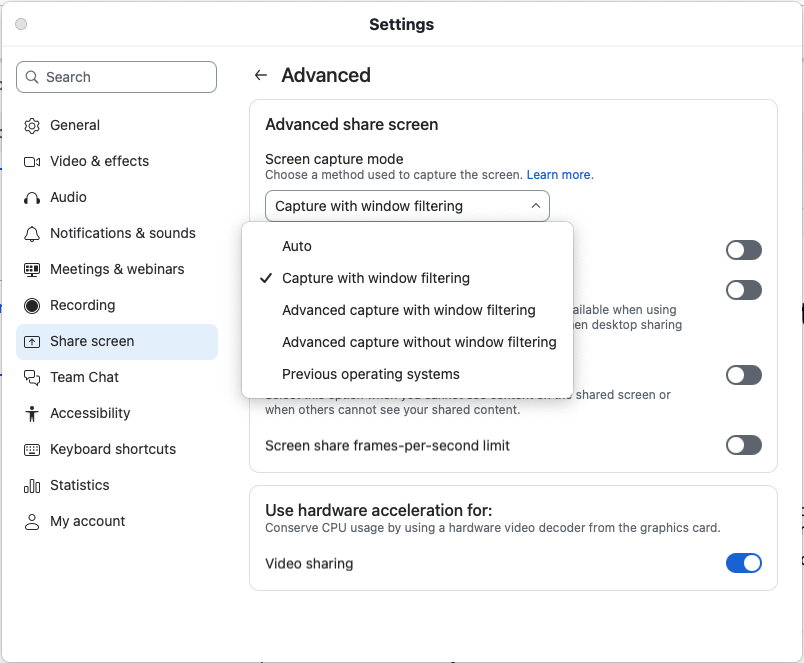
Zoom by default is a bad citizen. It ignores the “do not capture” feature. To make sure that your Screen Mirror session is not captured. Make sure “Capture with window filtering” is the selection in Settings | Shared Screen | Advanced in the zoom application.
OR make sure you only share specific windows in a Zoom session and not the entire screen.
Keep Connected Device Screen Awake
DO NOT ENABLE THIS FEATURE IF YOU USE SCREEN MIRROR IN A PUBLIC PLACE
This feature is only available when you have setup bluetooth keyboard access to the iPhone or iPad.
When this is enabled, Screen Mirror will send a keystroke to the connected iPhone or iPad every 10 seconds so that the screen does not lock. It will keep the iPhone display on indefinitely, or till you disconnect the iPhone from the USB cable.
This feature assumes that you have unlocked the phone when you connect it to Screen Mirror. If you do not unlock the screen, every 10 seconds the screen will come on. Screen Mirror does not know how to unlock your iPhone or iPad screen, it assumes that when you connect your iPhone to the Mac, you also unlock the screen.
Do give me feedback on this feature.