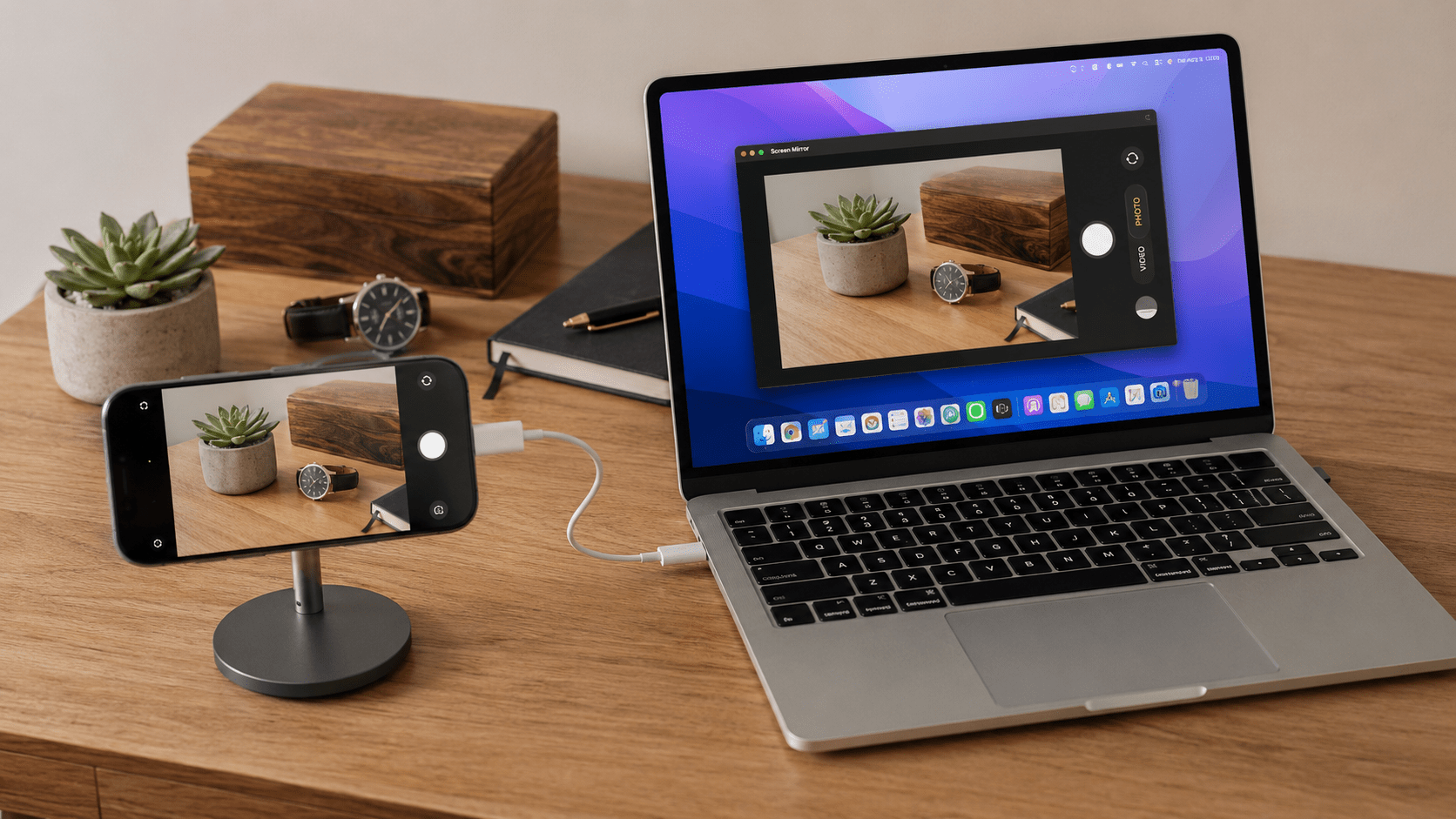
A new Screen Mirror feature for tabletop photography, overhead shooting, remote camera control, and simple photo booth setups
TLDR; When you have the Camera open on the iPhone, and want to take landscape pictures, press the “Rotate Camera” button. This will force the screen to rotate left, and allow you to see a camera view in a larger view. Remember to rotate the Phone left too. All mouse and keyboard inputs work correctly.
A Screen Mirror user recently asked me about a photography workflow.
They wanted to mount an iPhone above a table and use the rear camera for tabletop photography. The problem was simple: once the iPhone was mounted, its screen was no longer in a useful place.
They wanted to use the Mac as a large viewfinder.
That part already worked with Screen Mirror.
But when they turned the iPhone horizontally and opened the Camera app, another problem appeared.
The iPhone Camera app is not really a landscape app
The iPhone Camera app behaves differently from most applications.
Turn the iPhone sideways and the camera image rotates. The controls rotate. To the person holding the phone, Camera appears to be running in landscape.
From a screen mirroring perspective, however, the Camera app is still essentially presenting a portrait screen.
The result on the Mac is a horizontal camera image constrained inside a tall portrait-shaped window.
For normal use on the iPhone, this distinction hardly matters.
When the Mac is being used as a large external viewfinder, it matters a lot.
A horizontally mounted iPhone should produce a useful horizontal viewfinder.
So I added a new Rotate Camera control to Screen Mirror.
With the iPhone mounted horizontally, Screen Mirror can now rotate the Camera presentation and use much more of the Mac display.
The result is a proper landscape viewfinder for the native iPhone Camera app.
But the reason this becomes particularly useful is another Screen Mirror feature that was already there.
Screen Mirror is both mirroring and control
Screen Mirror does more than display the iPhone screen.
It can also connect back to the iPhone over Bluetooth and make the Mac behave like a Bluetooth keyboard and mouse.
The iPhone sees the Mac as an input device.
This is an important part of how Screen Mirror was designed.
With a conventional screen mirroring application, the computer is primarily a monitor. You can see the phone, but when you need to interact with it, you usually return to the physical device.
Screen Mirror combines the mirrored display with a separate control connection.
With Apple’s Full Keyboard Access enabled on the iPhone, the Mac keyboard can navigate the iPhone interface, move between controls, enter text, and activate selected controls. Mouse control is also available through Apple’s AssistiveTouch support.
Screen Mirror is not sending commands to a special companion application running on the iPhone. The Mac connects as Bluetooth input hardware that iOS already understands.
That makes the relationship between the two devices much more useful:
The Mac shows the iPhone, and the Mac can also control the iPhone.
For the Camera app, this means the Mac can become both the viewfinder and the remote control.
The tabletop photography request
The original user request is a good example of why this matters.
Imagine an iPhone mounted above a table with the rear camera pointing downward.
The setup might be used for photographing electronics, jewelry, artwork, documents, food, products for an online store, or prototypes.
The iPhone is in exactly the right place for the photograph.
Its screen is in exactly the wrong place for the photographer.
With Screen Mirror, the Mac can sit beside the table and show the Camera app on a much larger display.
The photographer can arrange the subject while watching the composition on the Mac.
Move the product.
Check the framing.
Adjust the lighting.
Check reflections.
Make another small adjustment.
Then take the photograph without reaching up and disturbing the mounted phone.
This is where Screen Mirror’s Bluetooth keyboard control becomes an important part of the workflow.
The Mac is not simply an external monitor.
The keyboard becomes the remote control for the iPhone.
For a fixed camera setup, that is useful for more than convenience. Touching a phone mounted on a tripod or overhead arm can disturb the framing or introduce movement. Leaving the camera in position and controlling it remotely is often preferable.
Photographers have been looking for this type of setup
The idea of using a MacBook as a large iPhone Camera viewfinder has been around for years.
A 2018 YouTube video titled “Using Macbook as a ViewFinder for iPhone Camera” demonstrates using a MacBook as the larger display while shooting with an iPhone. The video has received more than 200,000 views, which is significant interest for such a specific workflow. (YouTube)
The landscape orientation problem has also been documented directly.
Another video, “Using Macbook as a ViewFinder for iPhone HORIZONTAL,” shows the difficulty of getting a proper horizontal Camera view on the Mac.
The creator runs into essentially the same issue. The iPhone is horizontal, but the mirrored Camera interface is still presented vertically. His workaround is to open the camera through Messages because that provides the horizontal view he needs. (YouTube)
That is exactly the sort of workaround I wanted the new Rotate Camera feature to eliminate.
Open Camera.
Mount the phone horizontally.
Rotate the view on the Mac.
Use it.
The other missing piece is remote control
A large external viewfinder solves only half of the problem.
Photographers also want to avoid repeatedly touching a mounted camera.
One recent Reddit question captured this requirement very clearly:
“How can I use my Mac to remotely take photos with my iPhone? Just regular photos.”
The desired setup was an iPhone mounted on a stand, a Mac showing what the camera sees, and a way to take photographs without returning to the phone. (Reddit)
Another user described trying to build a small desktop photo studio. They could already mirror the iPhone to the Mac, but the missing piece was remotely activating the shutter. (Reddit)
A similar request came from an iPhone photographer working with stop motion. The goal was to leave the iPhone fixed on a tripod and control it from a MacBook so the phone would not be moved between photographs. (Reddit)
These are all versions of the same workflow:
Put the camera where it needs to be, while moving the viewfinder and controls somewhere more convenient.
That is a very natural fit for Screen Mirror because control has always been part of the application.
Why the native iPhone Camera app matters
There are excellent third-party camera applications for photographers who want manual exposure, focus, RAW workflows, and sophisticated video controls.
That is not what this feature is trying to replace.
The goal is to use the Camera app already on the iPhone.
The iPhone still takes the photograph.
Photos are captured normally.
Apple’s Camera interface remains the interface.
You can switch camera modes, take a picture, move into Photos, review the result, and continue using the iPhone normally.
Screen Mirror is simply changing where you see and control the phone.
For many tabletop and remote photography setups, that is all that is required.
Useful beyond tabletop photography
The user request started with tabletop photography, but the same setup applies anywhere the best position for the iPhone is not the best position for its display.
That includes:
- Product photography
- Overhead photography
- Food photography
- Electronics and PCB photography
- Artwork and document capture
- Macro setups
- Stop-motion photography
- Instructional videos
- Demonstrations
- Unboxing and maker videos
An overhead camera is probably the clearest example.
If the rear camera is pointing down at a table, the iPhone screen is pointing upward. The camera may be two or three feet above the work surface.
The Mac sitting beside the table is a much better place for the viewfinder.
It also creates a simple iPhone photo booth
The same combination produces another useful setup.
Mount the iPhone on a tripod and use its rear camera.
Place the Mac where the photographer or subject can see it.
Open Camera and use Rotate Camera to create a large landscape view.
The Mac becomes the preview display.
The Bluetooth keyboard connection provides the control path back to the phone.
The setup becomes very simple:
iPhone: Camera
Mac: Viewfinder
Mac keyboard and mouse: Remote control
That is the basis of a simple iPhone and Mac photo booth.
It is not intended to replace dedicated photo booth software with printing, templates, countdowns, galleries, and event management.
It is simply a useful way to combine an iPhone camera and Mac into a remotely controlled photography setup.
Why Apple’s iPhone Mirroring cannot do this
Apple’s iPhone Mirroring makes it possible to see and control many iPhone applications from a Mac.
But Camera is an important exception.
Apple specifically documents that access to the iPhone camera and microphone is unavailable while using iPhone Mirroring. (Apple Support)
So Apple’s iPhone Mirroring cannot be used to open the native Camera app and turn the Mac into a live Camera viewfinder.
Continuity Camera solves a different problem. It allows the Mac to use an iPhone as a webcam.
Screen Mirror keeps the workflow on the iPhone itself.
The iPhone remains the camera and the iPhone Camera app remains the camera interface.
The Mac becomes the larger place to see and control it.
A lightweight tethered photography workflow
Professional photographers will recognize some similarities to tethered shooting.
Traditional tethering connects a DSLR or mirrorless camera to a computer so the photographer can work from a larger display and, depending on the camera and software, control the camera remotely.
Professional applications such as Capture One add Live View, file transfer, camera settings, focus tools, cataloging, and many other capabilities.
Screen Mirror is not trying to replace those systems.
But the principle is similar.
The camera can remain fixed.
The photographer can work from a larger screen.
The camera can be operated without repeatedly touching it.
For someone shooting with an iPhone, Screen Mirror provides a lightweight version of that workflow using hardware they may already have.
Rotate Camera was the missing piece
Screen Mirror already had the unusual part.
It could mirror the iPhone while simultaneously connecting back to it as a Bluetooth keyboard and mouse.
That combination meant the Mac could already act as both a display and a control surface for the iPhone.
The user request for better Camera support exposed the missing piece.
The native Camera app simply did not make good use of the Mac display when the iPhone was mounted horizontally.
The new Rotate Camera feature fixes that.
Now the workflow fits together:
Mount the iPhone.
Open Camera.
Rotate the phone into landscape.
Rotate the Camera view on the Mac.
Use the Mac as the viewfinder.
Use the Mac keyboard and mouse to control the iPhone.
For tabletop photography, overhead shooting, stop motion, remote camera setups, and simple photo booths, that combination can be surprisingly useful.
And it came from a Screen Mirror user asking a very reasonable question:
Can I use this as a better viewfinder and remote control for my iPhone camera?
Now the answer is yes.
Screen Mirror and Control
Screen Mirror and Control is available on the Mac App Store.
Screen Mirror lets you view an iPhone or iPad on your Mac while also providing Bluetooth keyboard and mouse control of the device. The new Rotate Camera feature extends that combination to the native iPhone Camera app, making the Mac much more useful as an external landscape viewfinder.
Screen Mirror and Control on the Mac App Store
References
Apple Support: iPhone Mirroring: Use your iPhone from your Mac
Apple documents that access to the iPhone Camera and microphone is unavailable through iPhone Mirroring. (Apple Support)
Simple Tom: Using Macbook as a ViewFinder for iPhone Camera
An early example of using a MacBook as a larger iPhone Camera viewfinder. (YouTube)
Demetrios: Using Macbook as a ViewFinder for iPhone HORIZONTAL
A particularly relevant demonstration of the landscape Camera problem and the workaround previously required to obtain a horizontal viewfinder. (YouTube)
Reddit: How can I use my Mac to remotely take photos with my iPhone? Just regular photos.
A user looking for almost exactly this workflow: a mounted iPhone, a Mac viewfinder, and remote camera control. (Reddit)