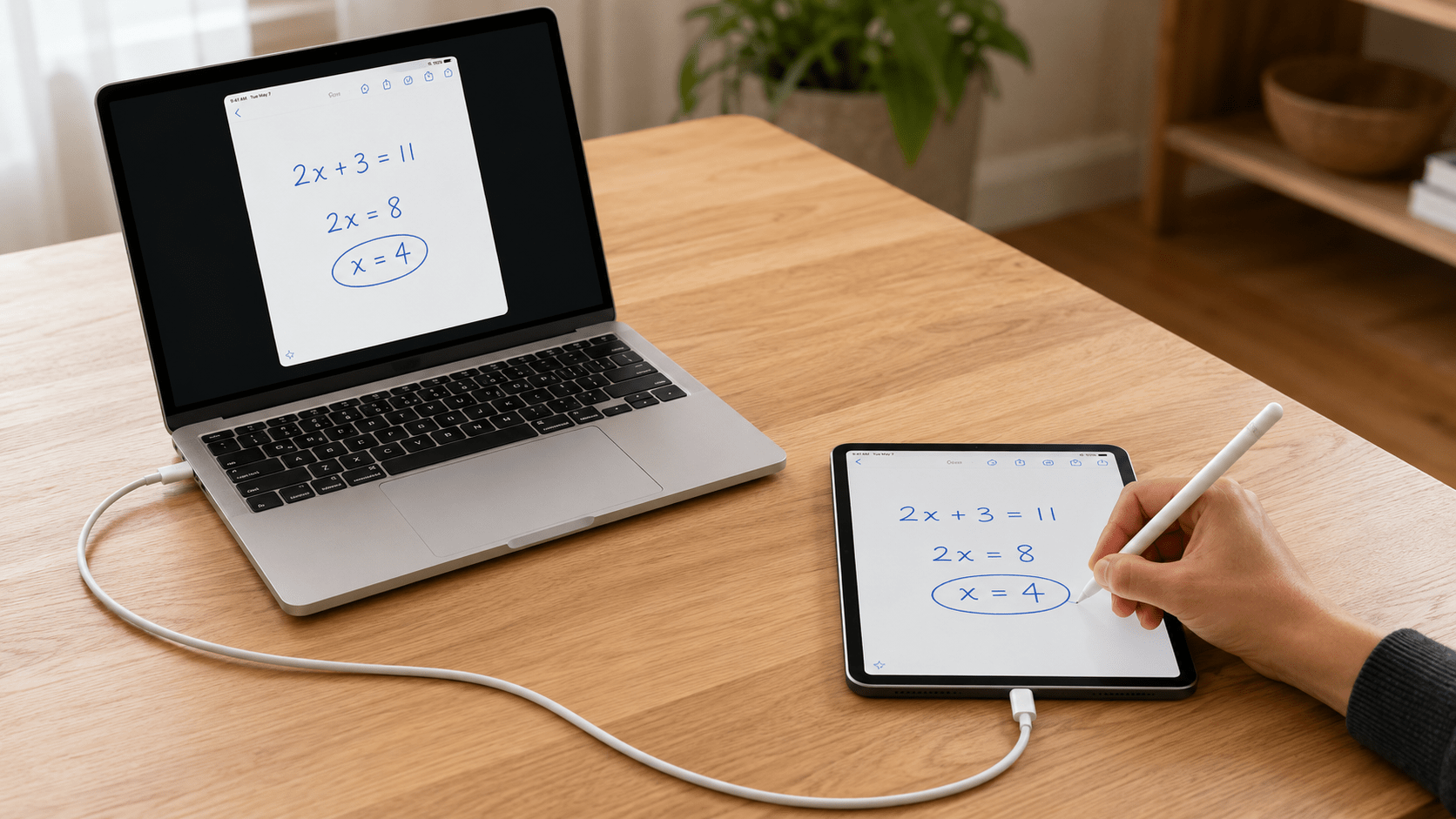
TL;DR: A professor using Screen Mirror showed me a useful classroom application: write on an iPad and let everyone follow along on the projector. Connect the iPad to a Mac by USB, then connect the Mac to the projector. The same setup lets me share handwriting during a Zoom call, and the writing app can save the finished notes for later.
This idea came from a professor using my app
One of the things I enjoy about developing Screen Mirror is discovering how people use it. This classroom use came from a user: a professor who mirrors his iPad onto his computer while also displaying a Q&A section.
In his September 2025 App Store review, Jérémie L. described his frustration with wireless tools:
“All the wireless tools I have tried are unreliable”
He then explained how connecting his iPad by USB and trusting the computer got Screen Mirror working for him. His review made me look more closely at this use of my app: helping a teacher write naturally while everyone watches the explanation take shape. Read the professor’s review
Write or type?
I spend plenty of time at a keyboard, but some things are easier to explain with a pen. A fraction, a circuit, a diagram, or an arrow connecting two ideas.
That is the teacher’s dilemma. Typing works well for prepared material. Handwriting lets me add a step, circle a mistake, or respond to a question without stopping to format anything.
With an iPad and Apple Pencil, I can do that on a digital page. Even Apple Notes supports handwriting and drawing. What I want next is simple: I write on the iPad, and it appears on the big screen. Apple’s handwriting guide
When AirPlay interrupts the explanation
An iPad can use AirPlay to mirror to a supported Mac, which can then display that view through the classroom projector. Apple’s AirPlay guide
The frustration comes when the connection drops and everyone waits while I try to restore it. An older school IT discussion described devices that:
“constantly lose their AirPlay connection and have to try to reconnect.”
That 2015 report concerned classroom Apple TVs. It is a historical example of the interruption, rather than evidence about today’s failure rates. School IT discussion
Apple’s troubleshooting steps include checking software, Wi-Fi and receiver settings, then restarting devices. Useful advice, but an unwelcome detour during a lesson. AirPlay troubleshooting
How I would connect the iPad to the projector
For teaching from a desk or lectern, I would use USB between the iPad and Mac, and a suitable video cable between the Mac and projector.
- Connect the Mac to the projector. Mirror the desktop, or use the projector as an extended display. Apple’s display guide
- Open Screen Mirror and connect the iPad by USB. Unlock it, approve the trust prompt, and allow Camera access on the Mac. Reconnect the cable if requested during setup. Screen Mirror setup
- Enlarge the iPad view on the projected display.
- Open a writing app and start writing. Use a blank page, or annotate prepared material such as a PDF imported into Goodnotes. Goodnotes import guide
Bluetooth keyboard and mouse pairing is optional for this workflow: I am writing directly on the iPad. USB removes the wireless mirroring link, although it also keeps me within reach of the cable. I would test the actual setup before class. Screen Mirror setup and controls
I can write during a Zoom call, too
The professor’s example also got me thinking about remote explanations. Sometimes I want to tell someone on a Zoom call, “Let me draw that.”
An online teacher reviewing AirDroid Cast put the problem neatly:
“I draw terribly with a mouse on my work PC.”
That October 2025 reviewer found AirDroid helpful after trying several approaches. It captures why writing on an iPad can feel much more natural than drawing with a mouse. AirDroid Cast reviews
With Screen Mirror, I can join Zoom on my Mac, connect the iPad over USB, then click Share in Zoom and select the Screen Mirror window. I keep speaking through the Mac while writing on the iPad, and participants follow the strokes as they appear. There is no need to join the call separately from the iPad. Zoom’s screen-sharing instructions
I can use this to work through a maths problem, sketch a circuit, mark up a design, or draw a process during a client discussion. The same view can go to the classroom projector and the Zoom audience for a hybrid lesson.
Before sharing, I turn Enhanced Privacy off and check what participants see, because that feature is designed to hide the Screen Mirror window from screen capture. The Zoom call still needs an internet connection; USB handles the local iPad-to-Mac link. Enhanced Privacy explained
Keep the writing after the lesson
The other advantage is that the page can still be there tomorrow.
I can save the worked example, including the extra explanation that came from a question. Goodnotes, for example, can export individual pages or a complete notebook as a PDF. Goodnotes export guide
Math teacher Hoff Math describes this exact workflow: annotate lesson material on the iPad, then export the finished pages for students. Sharing an iPad screen with students
The writing app saves the notes; Screen Mirror displays them on the Mac. If I want to preserve the explanation as a video, I can record the displayed area using macOS screen-recording tools. Apple’s recording guide
Other setups you may have tried
These older YouTube tutorials illustrate the extra hardware or software teachers have used:
- Apple TV classroom setup: a separate receiver connected to the projector, with AirPlay from the iPad.
- Reflector and AirServer workshop: software receivers for wireless mirroring to a computer.
- Project or record an iPad with QuickTime: the USB-and-QuickTime approach.
QuickTime remains a built-in USB alternative. Screen Mirror provides a dedicated viewing workflow with remembered window placement and support for multiple devices. QuickTime instructions, Screen Mirror features
What I like about the professor’s example is how ordinary the goal is: pick up a pen, explain something, and let everyone see it. In a classroom or on a Zoom call, that is a useful reason to try Screen Mirror.