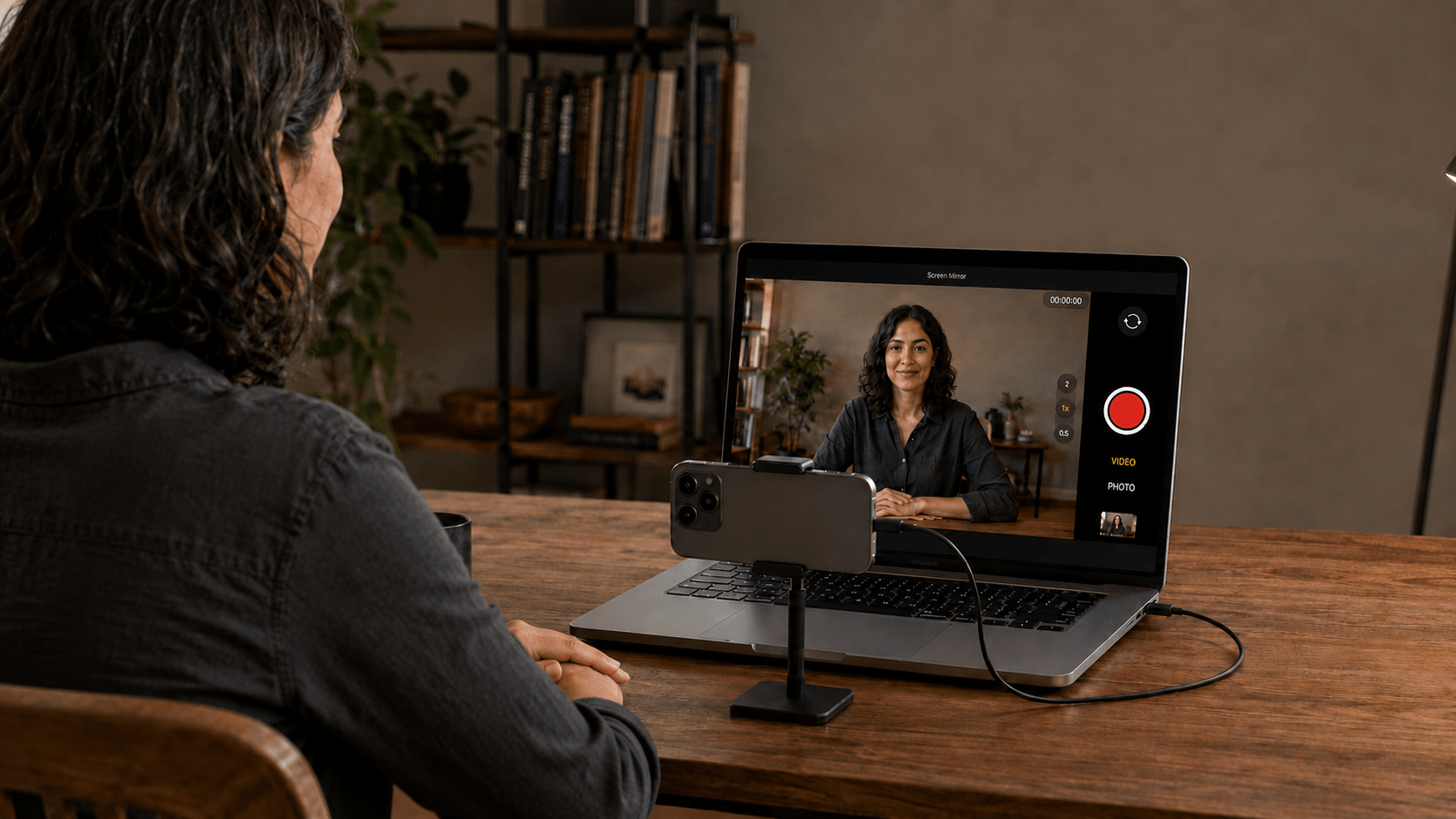
TL;DR: Connect your iPhone to your Mac with USB, open Screen Mirror, and launch the iPhone Camera app. Point the rear camera at yourself and use the Mac to check your framing. Shooting sideways? Click Rotate Camera. Want audio to stay on the iPhone? Turn off Screen Mirror’s Microphone permission on the Mac.
This idea came from a user
One of my users recently told me how he uses Screen Mirror. He’s a content creator, and he films himself with his iPhone’s rear camera. He puts his Mac where he can see it and uses the mirrored camera preview to check that he’s centered.
Such a simple use for the app. And a very good one.
If you’ve tried filming yourself with the back camera, you know the awkward bit. You get everything ready, walk around to your spot, and then wonder: am I actually in the shot?
You can record a few seconds, walk back, check, adjust, and try again. Or you can put the preview somewhere you can see it.
That’s what the Mac is doing here.
It turns out quite a few people have the same question
I went looking after hearing from this user. In one Mac discussion, someone asks for exactly this: record themselves with the iPhone’s main camera while seeing the picture on their Mac.
In a UGC creator thread, a creator had been asked to film with the rear camera and wasn’t sure how to keep themselves in frame. Another creator explains that they already mirror their phone to a laptop for this.
And a YouTuber describes putting a MacBook Pro behind the camera to make lining up the shot easier.
So the idea is already out there. Screen Mirror gives you a straightforward way to do it over USB.
Here’s how I’d set it up
You need your iPhone, your Mac, a USB data cable, a phone stand, and Screen Mirror.
- Connect the iPhone to the Mac. Unlock it, approve the trust prompt if asked, and reconnect the cable after establishing trust.
- Open Screen Mirror. Allow Camera access on the Mac so it can display the iPhone screen.
- Open Camera on the iPhone. Choose Video and use the rear camera.
- Put the phone in front of the Mac, with its rear lenses facing you. Position it so you can still see the Mac display.
- Take your place and check the preview. Leave a little room above your head. Check the background. If you’re showing a product, hold it up and see whether it fits.
- Start recording on the iPhone. The Mac gives you a bigger view of what the phone is seeing.
You don’t need Bluetooth pairing just to see the preview. That’s for the optional keyboard and mouse controls. My setup guide walks through both.
For landscape video, turn the iPhone sideways and click Rotate Camera in the Screen Mirror toolbar. The Mac then shows the camera view in the right orientation, including the iPhone’s camera controls. There’s more on this in View the iPhone Camera in Landscape on Your Mac.
One useful tip about audio
If you don’t want the Mac taking over the iPhone’s audio, turn off Microphone permission for Screen Mirror on the Mac.
Go to System Settings → Privacy & Security → Microphone, then switch off Screen Mirror. Reopen the app if prompted. Apple explains the permission setting here.
You’ll still see the picture, but audio can stay on the iPhone. Keep Camera permission enabled. This changes Screen Mirror’s audio access on the Mac; it doesn’t disable your iPhone’s microphone. My audio setup notes explain the difference.
More than talking to the camera
I can see this working nicely for product reviews, cooking demos, guitar lessons, or showing something you’ve built. You can check that your hands and whatever you’re explaining are visible.
Teachers could use it when recording a lesson, too. It reminds me of the professor whose setup led to my post about using an iPad with an overhead projector. Another user finding a useful way to put a bigger screen to work.
One small filming tip: check the Mac, then look at the phone’s lens when you speak. Otherwise, you can end up watching yourself through the whole video. And do a quick test recording to check the sound, especially if you use an external microphone.
For more ideas, take a look at my Mac viewfinder and remote shutter post or Primal Video’s older computer-as-viewfinder tutorial.
If your Mac is already on the desk, give Screen Mirror a try. You can finally see what you’re filming without walking around the phone.